
Moving to Okta for Single Sign-On (SSO)
This guide walks you through setting up your Okta account for the first time.
What is Okta?
Okta is a single sign-on (SSO) platform that allows you to access all your work applications with one login. After signing in to Okta once, you can access Google Workspace, Slack, and other apps without logging in again.
Benefits:
One password for all your work apps
Automatic access to new tools as you're added
Enhanced security with multi-factor authentication (MFA)
Instant access removal when you change roles or leave the company
Prerequisites
Access to your 11x email account
Your smartphone (for MFA setup)
10 minutes to complete setup
Initial setup
To set up your Okta account:
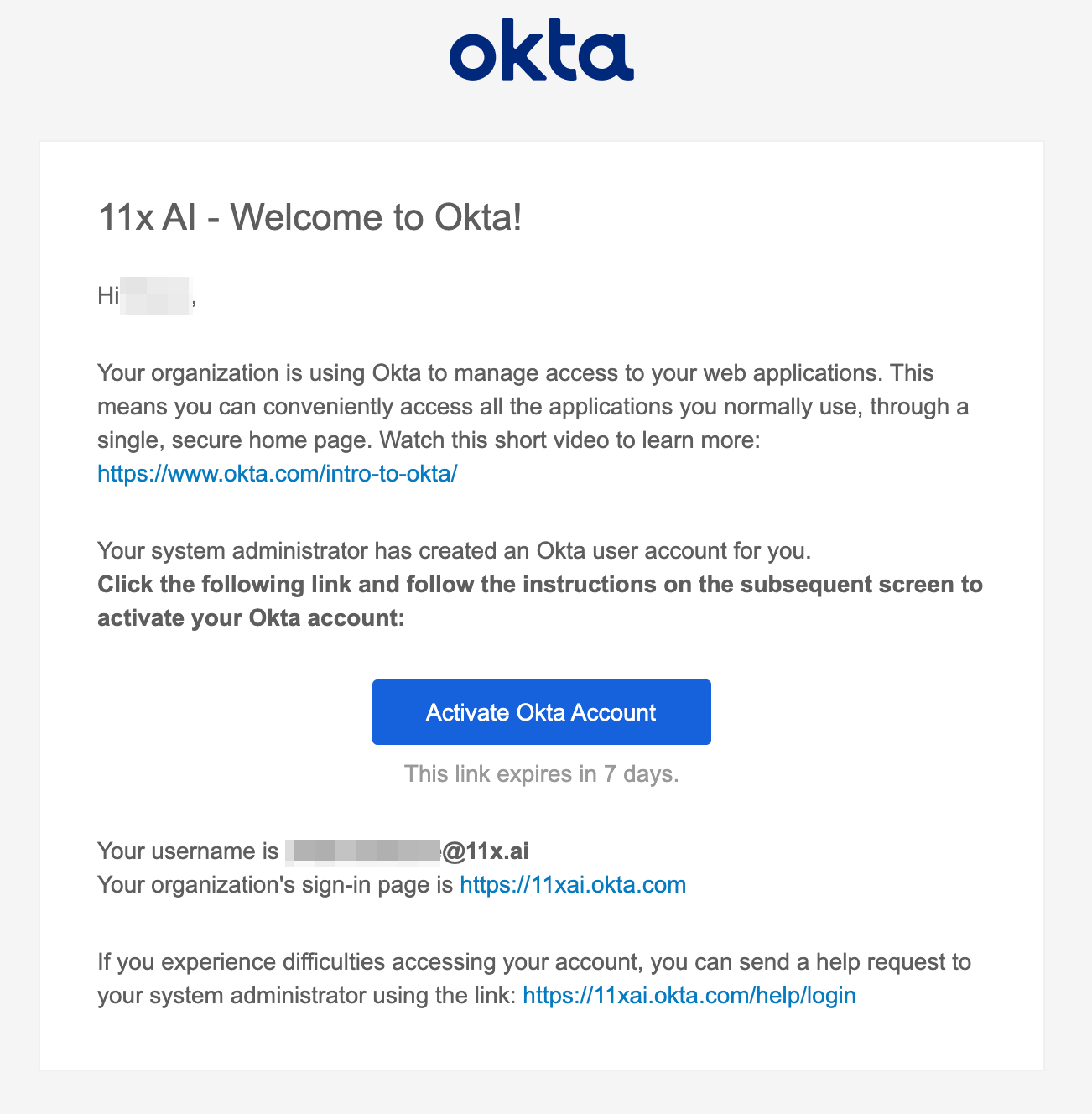
Check your 11x email for an invitation from
noreply@okta.comwith the subject "Welcome to Okta"If you don't see it, check your spam folder
If you still can't find it after 30 minutes, message #11x-it
Click Activate Okta Account in the email
You'll be taken to
11xai.okta.comCreate your Okta password following the requirements:
At least 12 characters long
Contains uppercase and lowercase letters
Contains at least one number
Contains at least one special character (
!@#$%^&*)
Click Create My Account
Set up multi-factor authentication
After creating your password, you'll be prompted to set up MFA:
Download Okta Verify on your smartphone:
Open the Okta Verify app and select Add Account
Follow the prompts to scan the QR code shown on your computer screen
Your account is now protected with MFA
What happens next: Each time you log in to Okta, you'll approve the login from your phone using Okta Verify.
Access your applications
After setup is complete:
Go to
11xai.okta.comand sign in with your new passwordApprove the MFA prompt on your phone
You'll see your application dashboard with tiles for:
Google Workspace (Gmail, Drive, Calendar)
Slack
[Other apps as configured]
Click any tile to access that application without logging in again
Tip: Bookmark 11xai.okta.com for quick access to all your apps.
Troubleshooting
I didn't receive the activation email
Check your spam folder for emails from
noreply@okta.comWait 10 minutes - the email may be delayed
Message #11x-it and we'll resend your invitation
I can't download Okta Verify
If you can't use a smartphone:
Message #11x-it
We'll set up SMS-based MFA as an alternative
I'm locked out during setup
If you make too many failed login attempts:
Wait 15 minutes for the lockout to expire, or
Message #11x-it for immediate assistance
My apps aren't showing up
If you don't see all your expected applications:
Try signing out and back in
If apps are still missing after 1 hour, message #11x-it